
Before you start
Have a receipt and your phone ready. Use good light and a flat surface. On iPhone, the app asks for camera permission the first time you capture. Android uses its document scanner without direct camera permission in Sukiri.
Open Scan
Open Sukiri and tap Scan. Allow camera access when your phone asks.
Capture the whole receipt
Keep the edges and the final total in view. For a long receipt, add another page rather than leaving out the bottom.
Check what it read
Compare the supplier, date, items and total with the image. Tap a field to correct it. Check any field marked as uncertain. VAT read from a receipt is an estimate.
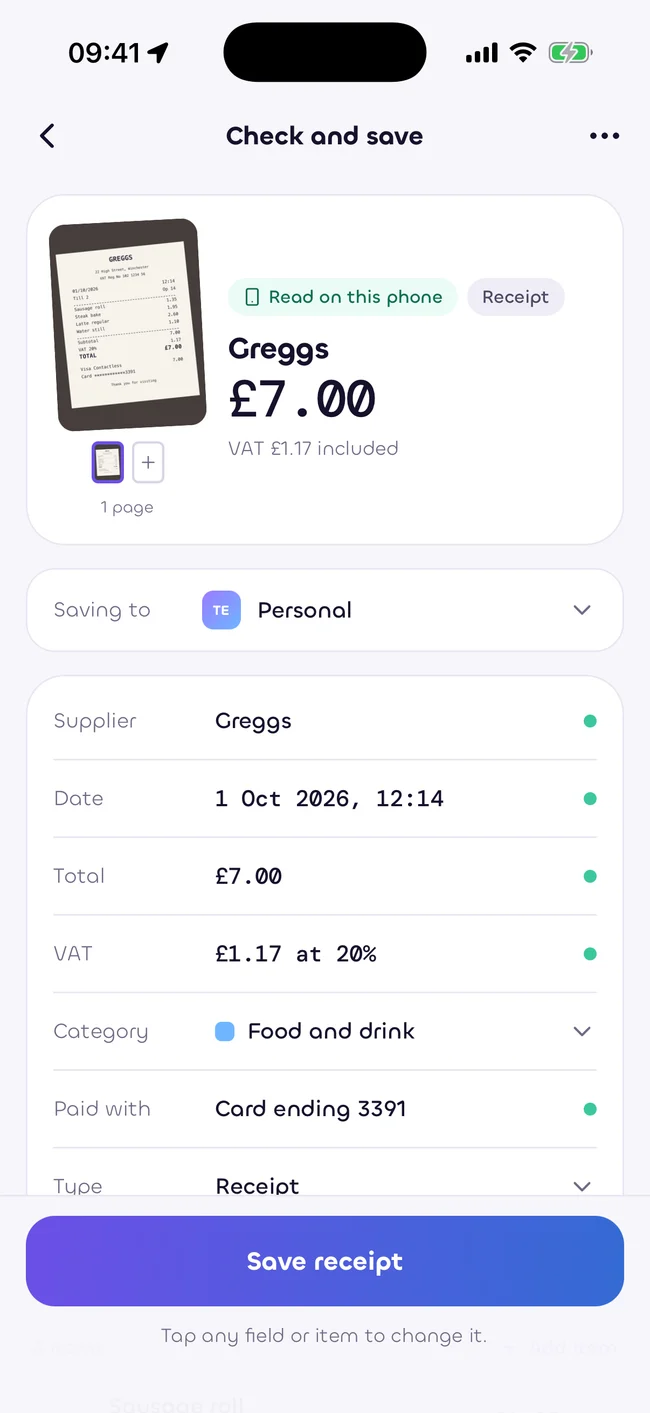
Save it
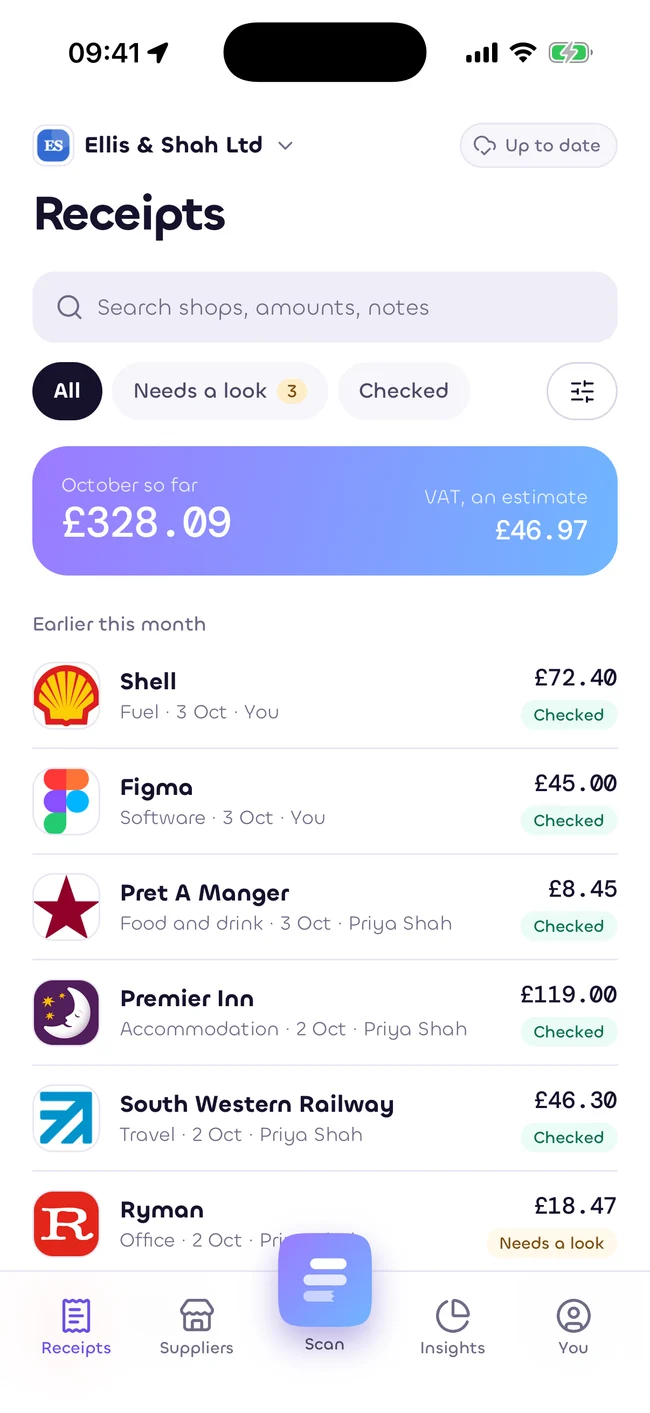
Tap Save. The receipt appears in Receipts. You can find it again by supplier, date or amount.
If something cannot be read
Try a clearer photo, or enter the missing field by hand. Cloud reading is not needed to save a receipt and is not switched on by default.
Estimates only, as at 5 October 2026. Not tax, legal or financial advice. Rules change. Check with your accountant.